How to put your clothes on an AI model from one photo
Last checked Oct 21, 2026 · Reviewed by Museify team · 9 min read
Start from one clear, evenly lit photo of your own garment: a flat lay, a mannequin, a hanger shot or a photo of it being worn all work. Tell the tool what must not change (the cut, the fabric, the length), change one thing per version, and keep the same AI model, pose and light so the only difference between images is the garment. Then check every image against the real piece: colour, buttons, print, text and texture are where AI slips. Make each ad size natively rather than cropping, and label the results as concept images until you have real photos of the finished product.
Which photo to start from
Any photo that shows your garment clearly can be the starting point. Each kind has a trade-off:
| Photo | Good for | Watch out for |
|---|---|---|
| Flat lay | Colour, print and the whole outline in one view; easy to shoot at home | No information about drape or fit, so the AI has to guess how the fabric hangs on a body |
| Mannequin or ghost mannequin | Shape, neckline and how the garment sits on shoulders | Mannequin proportions are not your customer’s; the length may read differently on a person |
| Hanger | Quick, and shows how soft fabrics fall | Shoulders and waist are distorted by the hanger; creases from the hook |
| Worn (on you or a model you photographed) | Real drape, real length, real fit | Only the garment is used; the person in the photo is never edited or reused, and the new images use an AI model instead |
Use a photo of your own product. Don’t start from another brand’s photos, an influencer’s post or any picture of someone else’s face or body: borrowing their work or likeness is exactly what buyers and platforms object to.
How to shoot it
You don’t need a studio. You need a photo where nothing about the garment is hidden or distorted.
- Use soft, even light. Daylight from a window, without direct sun, keeps colours true and avoids hard shadows that the AI may read as a pattern or a seam.
- Get the whole garment in the frame: collar, both sleeves and the hem. Anything cut off has to be invented.
- Steam or iron it first. Creases and fold lines can come back as part of the fabric.
- Use a plain background that contrasts with the garment: a white top on a white sheet loses its edges.
- Shoot straight on, from roughly the middle of the garment, so the proportions aren’t stretched.
- Make sure the print, embroidery and any text are sharp. If they are small, move closer rather than zooming in later.
- Compare the photo with the garment in the same light before you upload it. If the colour on screen is off, fix the photo, because the AI will copy the wrong colour faithfully.
Lock what must not change
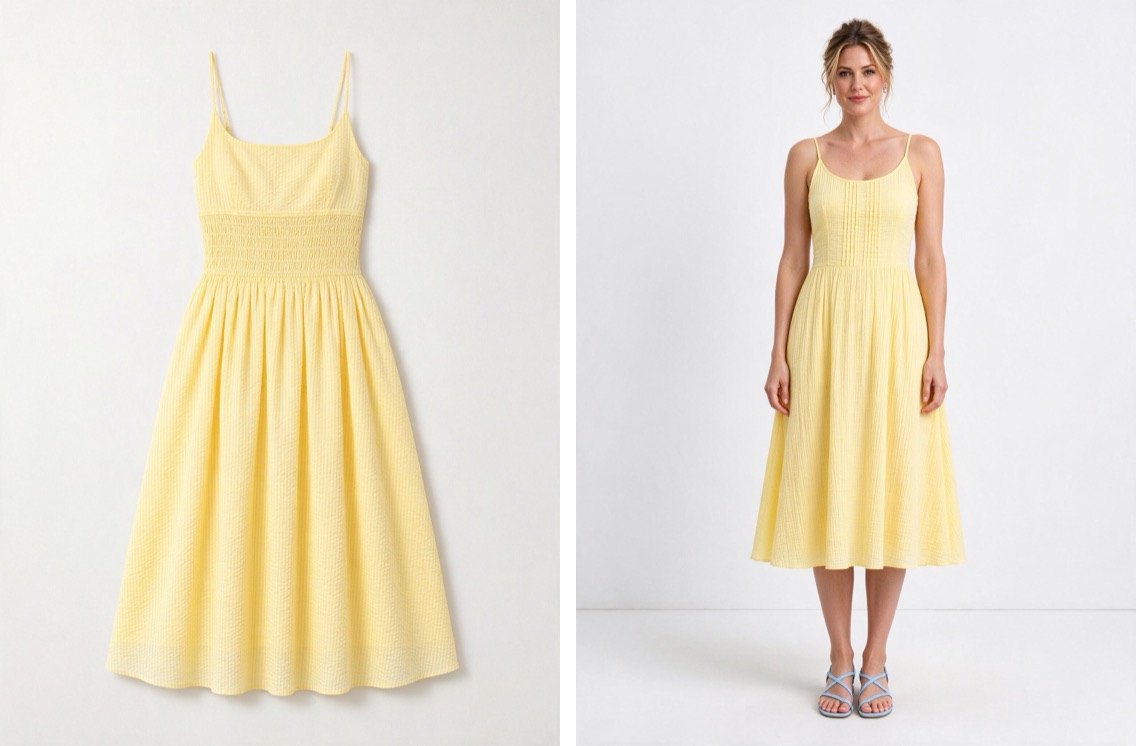
Before making anything, write down what the garment is: the category, cut and fit, length, neckline, sleeves, fabric, colour and print. Then decide which of these stay fixed in every image and which one you want to test.
- Lock the things that define the product: the category, the cut, the fabric, the length. If these drift, you are no longer looking at your bestseller.
- Open only what you want to learn about, such as a new colour, a new print, a different occasion or one changed detail.
- Change one thing per version. If version B has a new colour and a shorter hem, you won’t know which one buyers responded to.
- Treat detail changes (a new neckline, a new length, different buttons) as concepts. They don’t exist yet, so they need a sample before you can promise them.
Keep the same model, pose and light across every version
If version A is on one model in a studio and version B is on another model outdoors, a better result for B could be the model, the setting or the garment. To learn something about the garment, everything else has to stay the same: the same AI model, the same pose, the same light and the same framing in every version.
- Choose a model who looks like the people who buy from you, in skin tone, age and body type.
- Be specific about size. Describe the model’s size and build; left vague, image models tend to draw slimmer bodies.
- Use the same model for the whole test. Try a different model in a separate test, if you want to know how the garment reads on another body.
What AI gets wrong, and how to check each image
AI images of clothing are good at the overall look and weak at small, exact things. Put the real garment next to your screen and go through every image before it goes into an ad.
| Check | What tends to go wrong | How to check |
|---|---|---|
| Colour | Shifts slightly between images, including between the square, portrait and tall versions of the same shot | Line the sizes up side by side; compare with the garment in daylight |
| Buttons, zips, pockets | Wrong number, moved, or merged into the fabric | Count them against the real garment |
| Print, logo, text | Letters misspelled or blurred, pattern scale changed, a repeat pattern broken | Zoom in to full size and read every word |
| Embroidery and texture | Flattened into print, or the knit and weave smoothed away | Look at the close-up shot, not only the full-length one |
| Sheer, lace and mesh | Made opaque, or more see-through than the real fabric | Hold the garment up to light and compare |
| Length and fit | Hem lands higher or lower, waist sits differently, fit looks more tailored than it is | Compare the hem against a fixed point, such as the hip or knee, in your own worn photo |
| Back view | Invented when you gave only a front photo | Check seams, closures and print placement on the back of the real garment |
If an image is wrong, redo it rather than fixing it by hand in an editor. An image that shows a detail your product doesn’t have will mislead buyers, even in a test.
No AI image can show how the garment actually fits, stretches or feels. Treat it as a picture of the idea; get a sample made before you promise fit or fabric details to a buyer.
Sizes for ads and your store
Ads and stores want different shapes. Make each one natively, framed for that shape, rather than cropping one image into the others: cropping a square into a tall image either cuts off the garment or leaves you with too few pixels.
| Where | Shape | What the platform says |
|---|---|---|
| Facebook Feed image ad | 4:5 (portrait) | Meta’s Ads Guide lists 4:5 at 1440 × 1800 pixels [4] |
| Instagram Stories image ad | 9:16 (tall) | Meta lists 9:16 at 1440 × 2560 pixels, and suggests keeping roughly the top 14%, bottom 35% and 6% at each side free of key content, so the interface doesn’t cover it [5] |
| Facebook Feed carousel card | 1:1 (square) | Meta lists 1:1 at a resolution of at least 1080 × 1080 pixels [6] |
| Shopify product page | Usually 1:1 | Shopify says 2048 × 2048 pixels usually displays best for square images; files must be under 20 MB and up to 5000 × 5000 pixels or 25 megapixels [3] |
| Google Shopping | Any, product framed tightly | Google recommends 1500 × 1500 pixels or more, and says 500 × 500 becomes the minimum for all products from 31 January 2027 [1] |
Two more things from the same pages. Shopify recommends a consistent aspect ratio for product images, so they line up on collection pages [3]. Google asks for the product to fill between 75% and 90% of the image [1], which matters more for a flat lay than for an on-model shot. For TikTok, check TikTok’s own ad specifications; we haven’t summarised them here.
Label it as a concept image
An on-model image of a version you haven’t made yet is a concept image. Say so wherever a buyer can see it, and swap it for real photos as soon as the product exists.
- Keep the metadata. Google says images made with generative AI must carry metadata saying so, such as the IPTC DigitalSourceType property, and that you shouldn’t strip it [1]. The IPTC value for an image created with generative AI is trainedAlgorithmicMedia [2]. Re-saving through some editors or compressors can remove it, so check after exporting.
- Be careful with shopping feeds. Google wants the main image to show the exact item and variant being sold, and doesn’t accept mockups or illustrations that don’t depict the physical product [1]. Our suggestion: keep concept images out of your Google Shopping feed until you have real photos, and read Google’s page for your own case.
- Label ads and product pages. Meta, TikTok and Google each have their own AI labelling rules; our guide to AI labels on ads and product images goes through them.
- If you take orders before the product is made, give a real ship date. See pre-orders for clothing.
FAQ
Can I start from a photo of my garment being worn by a real person?
Yes, if it is your own product photo. Only the garment is read from it. The person shouldn’t be edited, copied or turned into the model; the new images should use an AI model instead.
Will the AI image show how my garment fits?
No. Drape, stretch and fit in the image are the AI’s guess. Use the images to see whether people are interested in a version, and use a sample to check fit.
Can I use these images on my product page?
For testing interest or taking pre-orders, with a clear label that they are concept images and a real ship date. Replace them with real photos once the product is made. For Google Shopping, see the caution above [1].
Why not crop one image into all three ad sizes?
A tall 9:16 crop of a square image either cuts off the hem and shoulders or has to be enlarged. An image framed for 9:16 from the start keeps the whole garment inside the area that the app’s buttons and captions don’t cover [5].
How many versions should I test at once?
Few enough that each one gets a fair share of your ad budget. Each version should differ from the original in one thing only, so a result tells you something about that one change.
How Museify helps
Upload a photo of your bestseller (on a model, flat lay, mannequin or hanger) and tick that it is your product. Museify reads the garment into a product card and never edits the person in the photo. You lock what must not change and open what to test; each version changes one thing (a colour, a pattern, an occasion or one detail), up to six including your original, and detail changes are marked as concepts that need a sample. Every version uses the same AI model from our library of eight (five women, three men, across skin tones, ages and body types), with the same pose and light, in front, back, flat lay and close-up shots; back views made from a front photo are marked as a guess. Each image is made natively at 1:1, 4:5 and 9:16. Main photos come first and the rest after you confirm them; each shot costs one credit across all its ad sizes, and a photo marked Not right? is redone free once. Colours can still drift slightly between sizes, and small text, buttons, embroidery and sheer fabric need checking. The free test kit groups the images by version as JPEGs tagged trainedAlgorithmicMedia, with ad names, Shopify draft products, AI disclosure and pre-order wording. Free plan downloads are 1K on the long edge; short 9:16 videos (a quick move or a turn-around) are on Pro and above.
Every planSee your next style on a model — before you make it.
Upload one photo of your bestseller. Test new colours, patterns and details on the same model, in every ad size, before you order a sample.
Sources
- [1]Google Merchant Center Help · Image link [image_link]support.google.com/merchants/answer/6324350 ↗ · checked Oct 21, 2026
- [2]IPTC · Digital Source Type (NewsCodes controlled vocabulary)cv.iptc.org/newscodes/digitalsourcetype/ ↗ · checked Oct 21, 2026
- [3]Shopify Help Center · Product media typeshelp.shopify.com/en/manual/products/product-media/product-media-types ↗ · checked Oct 21, 2026
- [4]Meta · Meta Ads Guide: Image ads in Facebook Feedwww.facebook.com/business/ads-guide/update/image/facebook-feed ↗ · checked Oct 21, 2026
- [5]Meta · Meta Ads Guide: Image ads in Instagram Storieswww.facebook.com/business/ads-guide/update/image/instagram-story ↗ · checked Oct 21, 2026
- [6]Meta · Meta Ads Guide: Carousel ads in Facebook Feedwww.facebook.com/business/ads-guide/update/carousel/facebook-feed ↗ · checked Oct 21, 2026